


Daisy chaining means connecting multiple monitors in a series using one video cable from one monitor to another monitor, rather than connecting each monitor directly to the computer.
With DisplayPort, USB-C with DisplayPort alternate mode, or Thunderbolt daisy chaining, you can enjoy the flexibility of having multiple displays while keeping cables to a minimum. You can duplicate or extend the monitors dedicated to a different task or application.
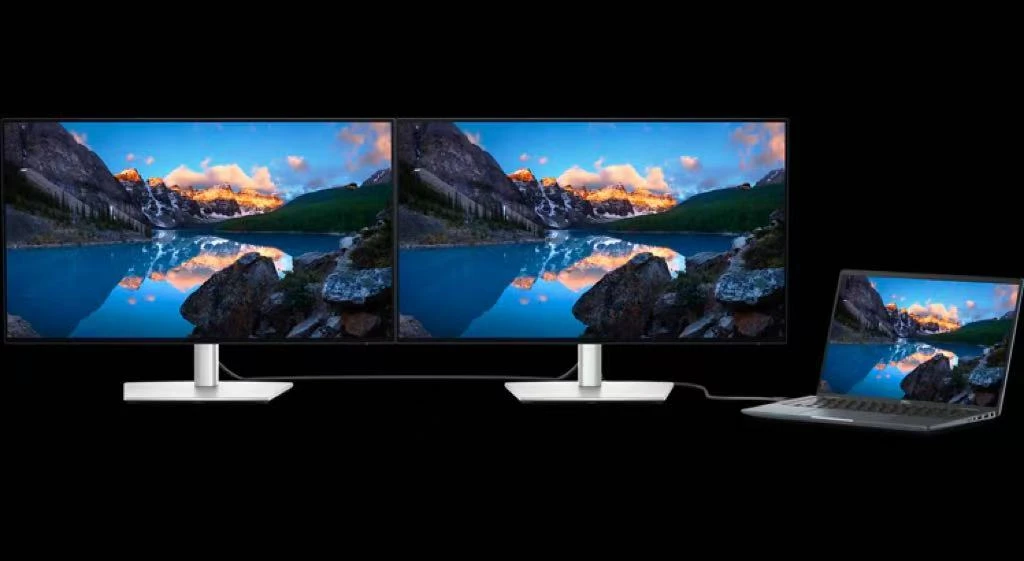
There are three types of ports that allow you to daisy chain monitors - DisplayPort with Multi-Stream Transport (MST), USB-C with DisplayPort alternate mode, and Thunderbolt Multi-Stream Transport (MST).
NOTE: Daisy chaining is not supported over HDMI or with a USB-C port that does not support DisplayPort alternate mode or Thunderbolt (version 3 or higher).
What do I need to daisy chain multiple Bestview Touch monitors?
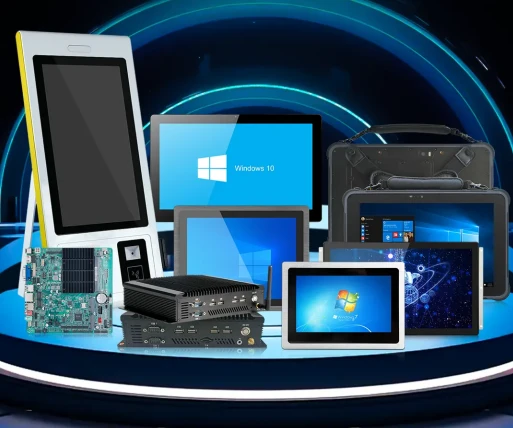
A PC with DisplayPort (version 1.2 or higher), USB-C with DisplayPort alternate mode, or Thunderbolt (version 3 or higher).
Bestview monitor with DisplayPort (version 1.2 or higher with Multi-Stream Transport), USB-C with DisplayPort alternate mode, or Thunderbolt (version 3 or higher).
NOTE: DisplayPort 1.2 MST is supported on select Bestview monitors. See the user's guide of your monitor to check if your monitor supports DisplayPort (version 1.2 or higher with MST), USB-C with DisplayPort alternate mode, or Thunderbolt (version 3 or higher).
Install the latest video or graphics card (GPU) drivers on your computer.

Step 1 – Connect your primary monitor
Connect your PC to the primary monitor (monitor 1). To maximize display quality, connect the monitor with the highest resolution first.
NOTE: On some older Dell monitors, enable MST feature to set up the monitor in a daisy chain. The instructions to navigate the menu on your Dell monitor may vary. See the user's guide of your Dell monitor for step-by-step instructions.
Step 2 – Add a second monitor
Connect the primary monitor (monitor 1) to secondary monitor (monitor 2).


Step 3 – Add subsequent monitors
Connect each subsequent monitor to the previous monitor.
To daisy chain more than two monitors, see the factors that affect daisy chaining below.
Step 4 – Configure display settings
After connecting your monitors, you may need to adjust your display settings. Go to your computer's display settings to arrange the monitors and choose whether to mirror or extend your desktop.
In Windows, go to Start > Settings > System > Display

First-class professional team for you to recommend products more in line with your needs. Perfect after-sale services exempt your worries.
Our address
No.5F, Building 24, Longbi Industry City, Bantian Street, Longgang District, Shenzhen City, Guangdong Province, China
Phone Number
+86-755-28447130
+8613632535154
sales@bestview.cc

| panel pc with touch screen,panel touch pc,pc acrylic side panel,pc case acrylic side panel,pc case clear side panel,pc case display side panel,pc case front,pc case front glass,pc case front io panel,pc case front panel display,pc case glass front panel,pc case io panel,pc case lcd front panel,pc case magnetic side panel,pc case panel screen,pc case sensor panel,pc case side,lcd pc panel,pc case side panel,pc case side panel display |