FAQ & Troubleshooting Methods for Industrial Touch All-in-One PC
Ⅰ. Screen display failure
1. The screen has no display (black screen/white screen/flower screen)
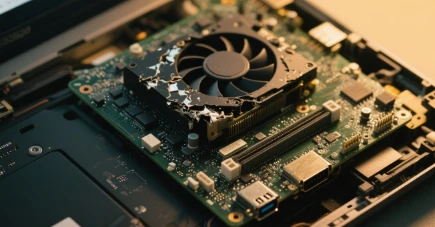
1.1 Possible reasons:
* Power supply failure (power adapter damaged, power cord loose/damaged, power supply voltage abnormal).
* Backlight failure (backlight tube/LED strip is damaged, backlight driving circuit problem).
* The screen cable is loose or damaged (the cable connecting the motherboard and LCD screen).
* The LCD screen itself is damaged.
* Motherboard failure (graphics card/display output part).
* Hibernation or sleep state is not awake (software settings or accidentally triggered).
1.2 Troubleshooting method:
* Check the power supply: Confirm whether the power adapter indicator light is on? Is it normal to measure the output voltage with a multi-meter? Check if the power cord is connected firmly? Try replacing the power adapter or power cord.
* Listen to the sound/see indicator light: Is there a "drip" sound on the motherboard when it is turned on? Are the power indicators and hard disk indicators flashing normally? This helps determine whether the host is running.
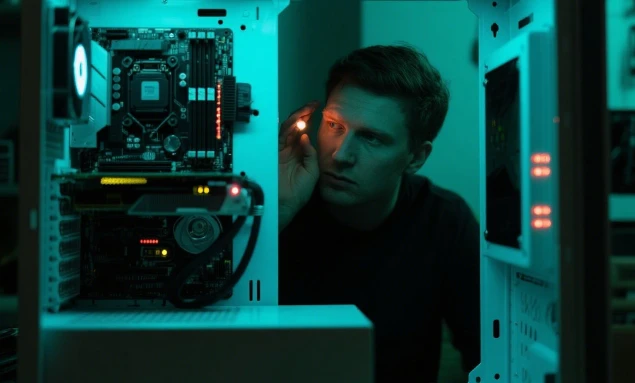
* Check the backlight: In darker environments, use a flashlight to slant the screen. If you look closely, can you see a very blurry image? Can see the backlight failure.
* Check the screen cable: After shutting down and power off, open the chassis (if allowed), re-plug and unplug the two ends of the screen cable (the motherboard end and the screen end) to ensure that the connection is firm and free of oxidation. If there is a backup screen cable, you can replace it.
* External monitor: If there is a video output interface (such as VGA, HDMI, DP), connect to an external monitor to see if there is an output. If there is output, the problem is on the screen cable or the screen itself; if there is no output, the problem may be on the motherboard or graphics card (if it is independent).
* Try to wake up: Press any key on the keyboard, move the mouse, and shortly press the power key to try to wake up.
2. Screen display abnormality (flickering, stripes, color deviation, bright/dark/bad pixels)
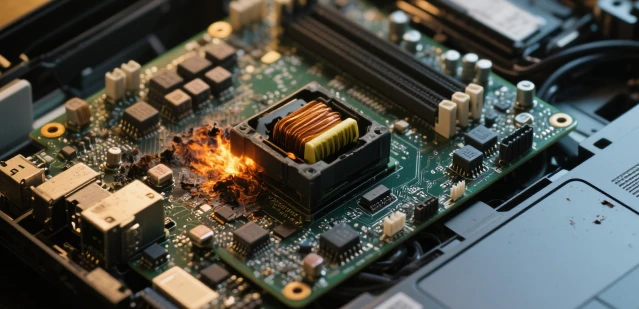
2.1 Possible causes:
* Screen cable contact is poor or slightly damaged.
* Screen is physically damaged (impact, squeezing).
* LCD screen is aging or has quality problems (bad pixels).
* Electromagnetic interference (near strong electrical equipment).
* Graphics driver problem or graphics hardware failure.
* The motherboard does not supply stable power to the screen.
2.2 Troubleshooting methods:
* Re-plug the screen cable: Same as the method in "No display".
* Check the environment: Remove devices that may generate strong electromagnetic interference.
* Replacement test: If conditions permit, replace the screen of the same model for testing.
* Update/rollback graphics driver: Enter safe mode or connect an external monitor for operation.
* Check screen settings: Check whether the resolution and refresh rate are set correctly (usually use the recommended values).
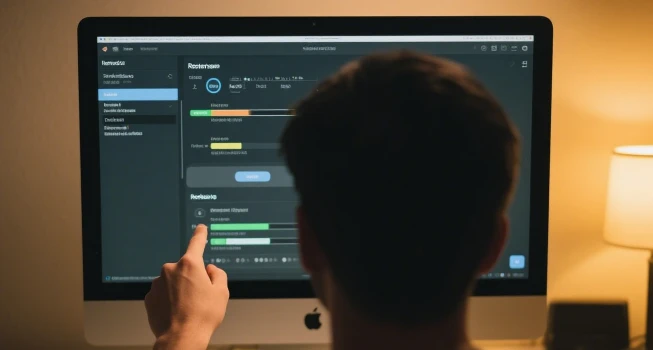
3. Touch screen failure (total no response, partial area failure, drift/inaccuracy)
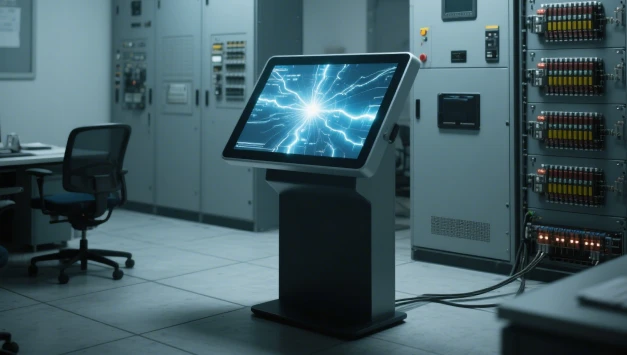
3.1 Possible reasons:
* Touch screen driver is not installed, damaged or version is incompatible.
* Touch screen calibration is lost or wrong.
* There is oil, water stains, obstructions or physical damage (scratches, cracks) on the touch screen surface.
* Touch screen controller failure (control chip on the motherboard or external USB controller).
* Touch screen cable (if it is an external USB interface) is loose or damaged.
* Strong electromagnetic interference.
* Operating system problem or conflict.
3.2 Troubleshooting:
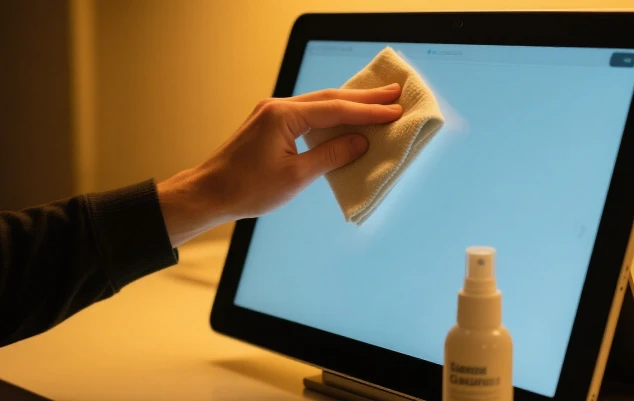
* Clean the screen: Use a soft dry cloth or special screen cleaner to clean the touch area.
* Check the connection: If it is a touch screen with an external USB interface, re-plug the USB cable. Check the internal screen cable connection (if the touch controller is integrated into the screen).
* Re-calibrate: Enter the operating system control panel or device manager to find the touch screen device and run the calibration program.
* Check/update drivers:
* Check whether the touch screen device has a yellow exclamation mark in the device manager.
* Uninstall the existing driver and restart the system to reinstall it.
* Download the latest or most stable dedicated driver from the device manufacturer's official website and install it.
* Eliminate interference: Stay away from strong electromagnetic sources.
* Safe mode test: Restart and enter safe mode to test whether the touch is normal. If it is normal, it may be a software conflict. Check the recently installed software or updates.
* Replacement test: If conditions permit, replace the touch screen or the entire screen module for testing.
Ⅱ. Host system failure
4. Unable to boot (no response when pressing the power button)
4.1 Possible reasons:
* Power problem (no power in the socket, damaged power cord, bad power adapter, bad internal power module).
* Motherboard failure (short circuit, damaged components, damaged BIOS).
* Front panel power switch button damaged or connection cable detached.
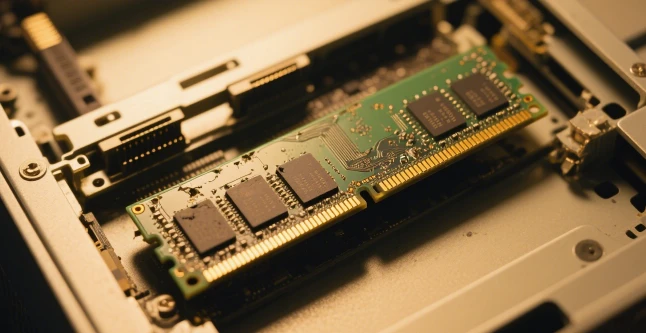
* Memory stick loose, oxidized or damaged.
* CPU failure (rare).
4.2 Troubleshooting method:
* Check the power supply: Same as the power check steps in "No display on the screen".
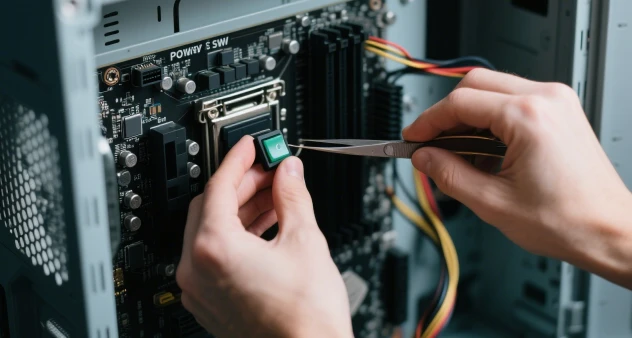
* Check the switch: Short the power switch jumper (Power SW) on the motherboard to see if it can be turned on (requires certain skills). Check whether the connection from the switch button to the motherboard is firm.
* Minimum system method: Disconnect all non-essential peripherals (hard disk, expansion card, etc.), leaving only the motherboard, CPU, single memory (try different slots and different memory sticks), and power supply. See if it can be turned on (listen to the alarm or see the diagnostic light).
* Clear CMOS: Unplug the power cord, remove the motherboard button battery for a few minutes, or short the CMOS clear jumper to restore the BIOS default settings.
* Check the memory: Re-seat the memory stick and wipe the gold fingers with an eraser. Replace the memory stick and test.
5. No alarm at startup but unable to enter the system (stuck at LOGO, black screen with cursor, repeated restarts)
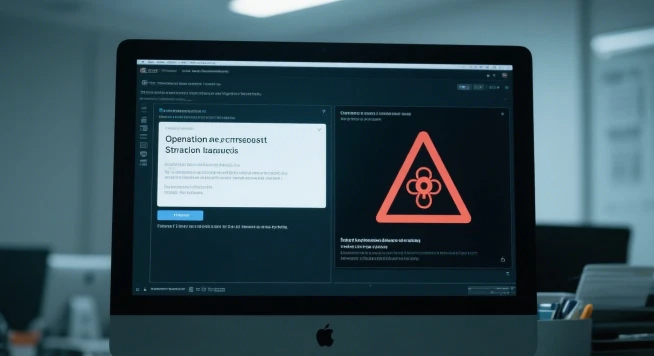
5.1 Possible reasons:
* Hard disk failure (system disk damaged, data cable loose/damaged).
* Operating system damaged, boot file lost, virus infection.
* BIOS setting error (especially boot sequence, hard disk mode).
* Memory instability or compatibility issues.
* Motherboard or CPU failure.
* Overheat protection (fan stopped, poor contact of radiator, too much dust).
5.2 Troubleshooting methods:
* Listen to the sound and watch the indicator light: Is the hard disk light always on without flashing? Is there any abnormal alarm sound?
* Check BIOS: Press the specified key (Del, F2, F10, etc.) to enter BIOS after startup, and check whether the hard disk can be recognized? Check whether the boot sequence is correct? Try to restore the BIOS default settings.
* Check the hard disk: Re-plug the hard disk data cable and power cable. Try to hang the system disk on another computer to check whether it can be read. Use the system installation disk/USB flash drive to try to repair the boot or reinstall the system (back up data first).
* Check the heat dissipation: Observe whether the CPU/system fan rotates when the computer is turned on? Is the heat sink abnormally hot to the touch? Clean the dust, reapply the silicone grease, and ensure that the heat sink is firmly installed.
* Memory test: Same as the memory check steps in "Unable to boot".
* Minimum system method: Same as above.
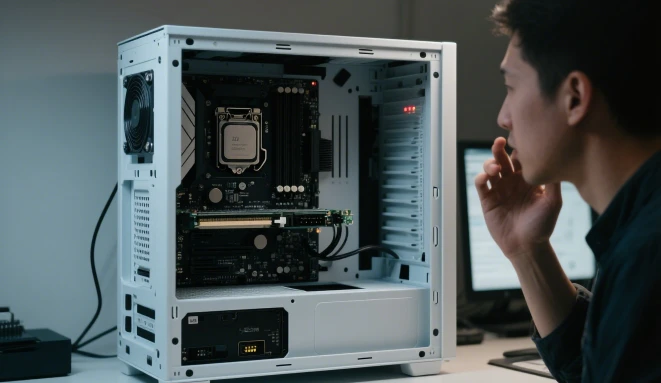
6. System is unstable (freeze, blue screen, automatic restart)
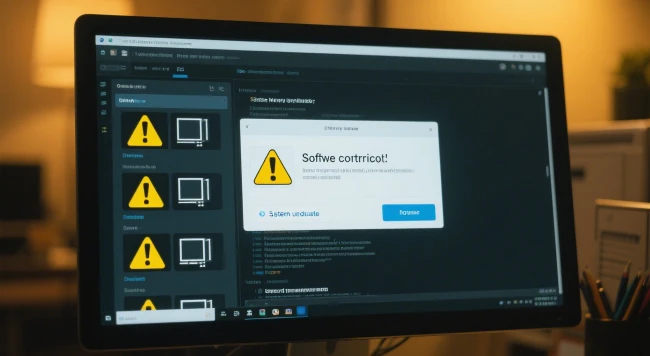
6.1 Possible reasons:
* Software conflict, driver problem (especially after new hardware is installed), operating system vulnerability or damage.
* Memory failure (unstable).
* Hard disk failure (bad track).
* Motherboard failure (capacitor bulging, unstable power supply).
* Severe overheating (CPU, graphics card, motherboard chip-set).
* Insufficient power or unstable output.
* Virus infection.
6.2 Troubleshooting:
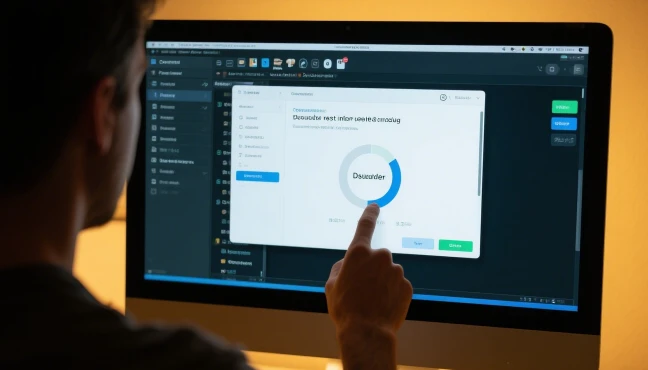
* Check the error code: Record the error code on the screen when the system freezes/blue screens (such as the blue screen code `0x0000007B`), which is the key clue!
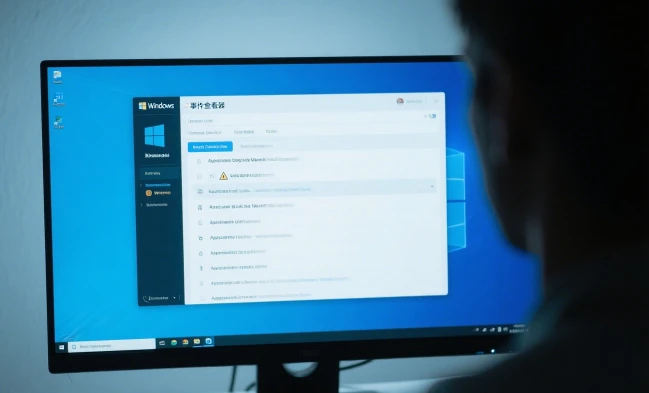
* Check the event viewer: After entering the system (if you can still enter), check the system log and application log in the Windows "Event Viewer" to find the source of the error or warning.
* Safe mode test: Restart to enter safe mode to see if it is stable. If it is stable, it is basically a software or driver problem.
6.11 Software troubleshooting:
* Uninstall recently installed software or updates.
* Update key drivers (motherboard chip-set, graphics card, network card, etc.), especially the dedicated drivers provided by industrial motherboard manufacturers.
* Use antivirus software to scan the entire disk.
* Run the `sfc /scan now` command to repair system files.
6.12 Hardware troubleshooting:
* Check heat dissipation: Same as the "Unable to enter the system" step. In industrial environments, pay special attention to the unobstructed heat dissipation channel.
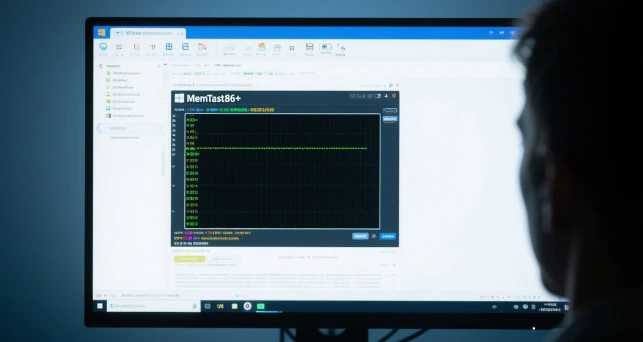
* Memory diagnosis: Use the Windows memory diagnostic tool or MemTest86+ software for long-term testing.
* Hard disk detection: Use Crystal Disk Info to check the SMART status, or use tools such as HD Tune to scan for bad sectors.
* Power supply test: Replace the power supply with sufficient power for testing.
* Minimum system method: Add hardware step by step to locate the problem component.
Ⅲ. Interface and peripheral failures
7. Failure of external interfaces such as USB/serial port/network port

7.1 Possible causes:
7.1 Possible causes:
* Physical damage to the interface (bumped, pin broken).
* Interface driver not installed or damaged.
* Failure of the motherboard south bridge chip or related interface control chip.
* Disabled in BIOS.
* Damage caused by static electricity or surge.
* Failure of the peripheral itself or problem with the connection cable.
7.2 Troubleshooting methods:
* Check the physical interface: Observe whether there is obvious damage, foreign matter, or oxidation. Gently try to plug and unplug to see if it is loose.
* Check BIOS settings: Confirm whether the interface is disabled.
* Check the device manager: Check whether there is an exclamation mark on the corresponding device? Try to uninstall the driver and re-scan the hardware changes or update the driver.
* Replace peripherals/cables: Try different peripherals or cables.
* Replacement test: If multiple interfaces fail at the same time, the motherboard is likely to fail.
8. Unable to connect to the network


8.1 Possible reasons:
* The network cable is loose or damaged.
* The router/switch port is faulty or has a configuration problem.
* The network card driver has a problem.
* The IP address is configured incorrectly (DHCP is not obtained or the manual setting is incorrect).
* The network card hardware is faulty.
* Firewall or security software blocks it.
* The network component of the operating system is damaged.
8.2 Troubleshooting methods:
* Check the physical connection: Are both ends of the network cable plugged in tightly? Is the network port indicator light on? Replace the network cable for testing.
* Restart the device: Restart the all-in-one machine and the router/switch.
* Check the IP settings: Make sure that the IP is obtained automatically (DHCP) or the correct IP, subnet mask, gateway, and DNS are set manually.
* Check the driver: Check the network card status in the device manager and update the driver.
* Run diagnostics: Use the Windows Network Troubleshooting Tool.
* Disable the firewall/antivirus test: Temporarily disable the test to see if it is connected.
* Ping test: Ping the gateway address, other devices in the same network segment, and the external network address (such as 8.8.8.8) in the command prompt to gradually locate the breakpoints.
IV. Environmental and physical failures
9. Overheating (loud fan noise, frequent crashes and restarts)
9.1 Possible causes:
* The cooling fan is stopped, the speed is too low, or it is damaged.
* The heat sink is seriously dusty, and the thermal grease is dry and ineffective.
* The heat sink is in poor contact with the CPU/chip.
* The ambient temperature is too high or the ventilation is poor.
* The fan is blocked by cables.

9.2 Troubleshooting methods:
* Clean dust: After turning off the power, thoroughly remove the dust on the fan blades, cooling fins, and air ducts (use a brush, blower cold air, or a special vacuum cleaner).
* Replace the grease: Remove the old grease and evenly apply high-quality thermal grease again.
* Check the fan: Turn on the machine and observe whether the fan is rotating. If it does not rotate or the speed is abnormally slow, try to replace the fan. Check whether the fan power cord is properly plugged in.
* Improve the environment: Make sure there is enough heat dissipation space around the equipment to avoid direct sunlight or proximity to heat sources. High-temperature workshops need to consider additional heat dissipation measures.
* Monitor temperature: Use software such as HW Monitor, AIDA64, etc. to monitor core temperature.
10. Physical damage (shell deformation, screen cracking, interface crooked)
* Cause: collision, squeezing, and falling during transportation, installation, and use.
* Elimination: Depending on the degree of damage, it may be necessary to replace the shell, screen module, interface module, or even the entire machine. The focus is on strengthening protection and standardizing operations.

General troubleshooting principles and suggestions
1. Safety first: Be sure to disconnect the power before any operation! Especially when opening the chassis, pay attention to electrostatic protection (wear an anti-static wristband or touch a grounded metal object).
01
2. From simple to complex: Prioritize the simplest possibility (loose power cord, loose interface, screen stains).
02
3. Observe the phenomenon: Record the fault phenomenon in detail, the time of occurrence (when starting/running/after a specific operation), whether there is an alarm sound/indicator status/screen error message. This is the key to diagnosis.
03
4. Minimum system method: Disconnect all non-essential peripherals, retain only the minimum hardware required for startup, and gradually add to locate the source of the fault.
04
5. Replacement method: Replacing suspicious parts with known normal parts (power supply, memory, hard disk, cables, etc.) is one of the most effective hardware diagnostic methods.
05
6. Make good use of software tools: BIOS self-test, operating system logs, hardware diagnostic tools, temperature monitoring software, etc. can provide important information.
01
7. Drivers and firmware: Be sure to use the latest or certified drivers and BIOS/firmware updates provided by the official website of the industrial equipment manufacturer. Consumer-grade drivers may be incompatible or unstable.
02
8. Environmental adaptability: Clean dust regularly to ensure good heat dissipation. In dusty, oily, high-temperature, and high-vibration environments, choose industrial all-in-one machines with higher protection levels (IP levels) and wide-temperature designs, and install them strictly in accordance with environmental requirements.
03
9. Preventive maintenance: Formulate a regular maintenance plan, including cleaning, heat dissipation inspection, connection tightening, data backup, and log inspection, which can significantly reduce the failure rate.
04
10. Seek professional support: For complex hardware failures, motherboard-level repairs, or situations involving core production line equipment, contact the equipment manufacturer or professional maintenance service provider in a timely manner.
05
First-class professional team for you to recommend products more in line with your needs. Perfect after-sale services exempt your worries.
Our address
No.5F, Building 24, Longbi Industry City, Bantian Street, Longgang District, Shenzhen City, Guangdong Province, China
Phone Number
+86-755-28447130
+8613632535154
sales@bestview.cc